Getting started
MapMining is a Chrome extension. It adds a panel to Google Maps that collects the businesses in your search, checks their websites and scores each one for your offer.
1. Create your free account
Sign up with your email or with Google. The free plan gives you 300 lead credits once, with no card.
If you signed up with an email and password, confirm your email address from the message we send you. Free mining starts once it’s confirmed. Google accounts are confirmed already.
2. Install the extension and pin it
Install MapMining from the Chrome Web Store. The installation guide shows every step with pictures. Then click the puzzle-piece icon at the top right of Chrome and the pin next to MapMining, so its icon stays in the toolbar. The icon opens and closes the panel.
3. Log in to the panel
Open Google Maps. The panel appears on the right. Log in with the same account:
- Email and password: type them in the panel.
- Google: press Continue with Google. A page on mapmining.app opens: sign in there and press Connect. The panel logs in on its own. See Logging in to the extension.
4. Search and press Start
Search a trade and a place, like plumbers Berlin or hotels London. In the panel:
- Pick an objective (web design, ads and marketing, or local SEO). Leads are scored for it.
- Narrow the run with Target Base if you like, for example No Website Only.
- Choose the data you want under Maps Data and X-Ray.
- Press ▶️ START.
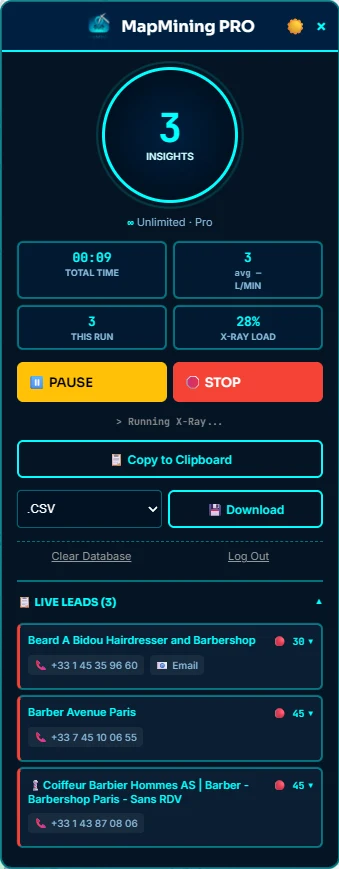
MapMining opens each business in the results, collects its details and, with X-Ray on, reads its website. You can ⏸️ PAUSE, ▶️ RESUME or 🛑 STOP at any time. Each lead collected uses one credit.
5. Export your leads
When the run is done, pick .CSV (or .JSON on Pro) and press 💾 Download, or press 📋 Copy to Clipboard to paste into a spreadsheet. See Exports.
Your leads stay in your browser until you export or clear them. Nothing is sent to MapMining.